



A lightweight, cross-platform application that blocks distracting websites by modifying your system's hosts file.
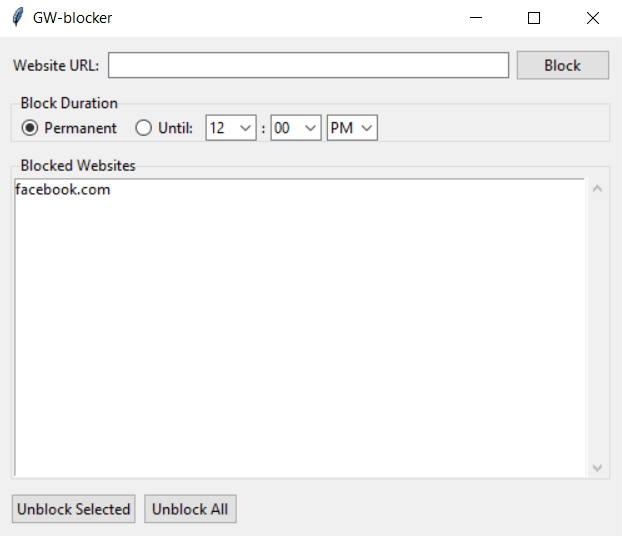
- ✨ Simple, intuitive interface for blocking and unblocking websites
- ⏰ Block websites permanently or until a specific time
- 🌍 Cross-platform: works on Windows, macOS, and Linux
- 🔒 No internet connection required (works completely offline)
- 📖 Open source and free to use
Note: Pre-built binaries are currently in progress. Please install from source.
- Download the latest
.exefile from the Releases page - Right-click the downloaded file and select "Run as administrator"
- Download the latest
.dmgfile from the Releases page - Open the .dmg file and drag the application to your Applications folder
- When running for the first time, right-click on the app and select "Open"
- Enter your password when prompted
- Download the appropriate package for your distribution from the Releases page
.debfor Debian/Ubuntu-based distributions.rpmfor Fedora/RHEL-based distributions.AppImagefor universal use
- Make the file executable:
chmod +x WebsiteBlocker-*.AppImage
./WebsiteBlocker-*.AppImage- Python 3.6 or higher
- Tkinter (usually included with Python)
- pip (Python package installer)
- Clone the repository:
git clone https://github.com/HarshYadav152/GW-blocker.git
cd GW-blocker- Install dependencies:
pip install -r requirements.txt- Run the application with administrator/root privileges:
Windows:
- Right-click Command Prompt and select "Run as administrator"
- Navigate to the project directory:
cd path\to\GW-blocker
python -m src.mainmacOS/Linux:
sudo python3 -m src.main- Enter the domain name (e.g.,
facebook.com) in the URL field - Select block duration:
- Permanent: Block indefinitely until manually unblocked
- Until: Block until a specific time
- Click "Block"
- Unblock Selected: Select a website from the list and click this button
- Unblock All: Remove all blocks at once
- Choose "Until" option
- Set the desired time using the time picker
- The website will be automatically unblocked after that time
This application modifies your system's hosts file, which requires elevated permissions on all operating systems. The hosts file is a protected system file that maps hostnames to IP addresses. By redirecting blocked domains to 127.0.0.1 (localhost), the application prevents your browser from accessing those sites.
pip install pyinstallerpyinstaller --onefile --windowed --uac-admin --icon=assets/icon.ico --name GW-Blocker src/main.pypyinstaller --onefile --windowed --icon=assets/icon.icns --name GW-Blocker src/main.pypyinstaller --onefile --name GW-Blocker src/main.pyThe executable will be created in the dist/ directory.
This section is for contributors who want to run tests and work on the codebase locally.
git clone https://github.com/HarshYadav152/GW-blocker.git
cd GW-blockerWindows:
python -m venv venv
venv\Scripts\activate
macOS/Linux:
python3 -m venv venv
source venv/bin/activatepip install -r requirements.txtRun the full test suite:
pytestRun with verbose output to see each test name:
pytest -vRun a specific test file:
pytest tests/test_blocker.pyRun tests matching a keyword:
pytest -k "block"Tip: Always activate your virtual environment before running tests to avoid polluting your global Python environment.
Contributions are welcome! Please read our Contributing Guidelines before submitting a Pull Request.
- Fork the repository
- Create a feature branch (
git checkout -b feature/amazing-feature) - Commit your changes (
git commit -m 'Add some amazing feature') - Push to the branch (
git push origin feature/amazing-feature) - Open a Pull Request
See CONTRIBUTING.md for detailed guidelines.
This project is licensed under the MIT License - see the LICENSE file for details.
- 🐛 Bug Reports: Open an issue
- 💡 Feature Requests: Open an issue
- 📖 Documentation: Check the Wiki (if available)
- Built with Python and Tkinter
- Inspired by the need for digital wellness and productivity
- Add whitelist functionality
- Implement scheduling (e.g., block during work hours)
- Add statistics and usage tracking
- Browser extension integration
- Mobile app version
Star ⭐ this repository if you find it helpful!