





The Android utility that modifies Android's native Private DNS (DNS-over-TLS) settings per application. Automatically switches Private DNS hostnames upon launching designated apps and turns off or restores baseline DNS immediately when leaving—without running a VPN service.

Android 9.0+ · Free · No VPN · Open source
How to install:
1. Tap Download and open the APK. If Android asks, allow installing from this source.
2. Do the one-time permission setup (1-Minute Initial Setup).
3. Enable the Auto-Switch Accessibility Service in AppDNS Settings.
Other versions: Releases page
Your browser may warn about APK files. This is normal for apps installed outside the Play Store.
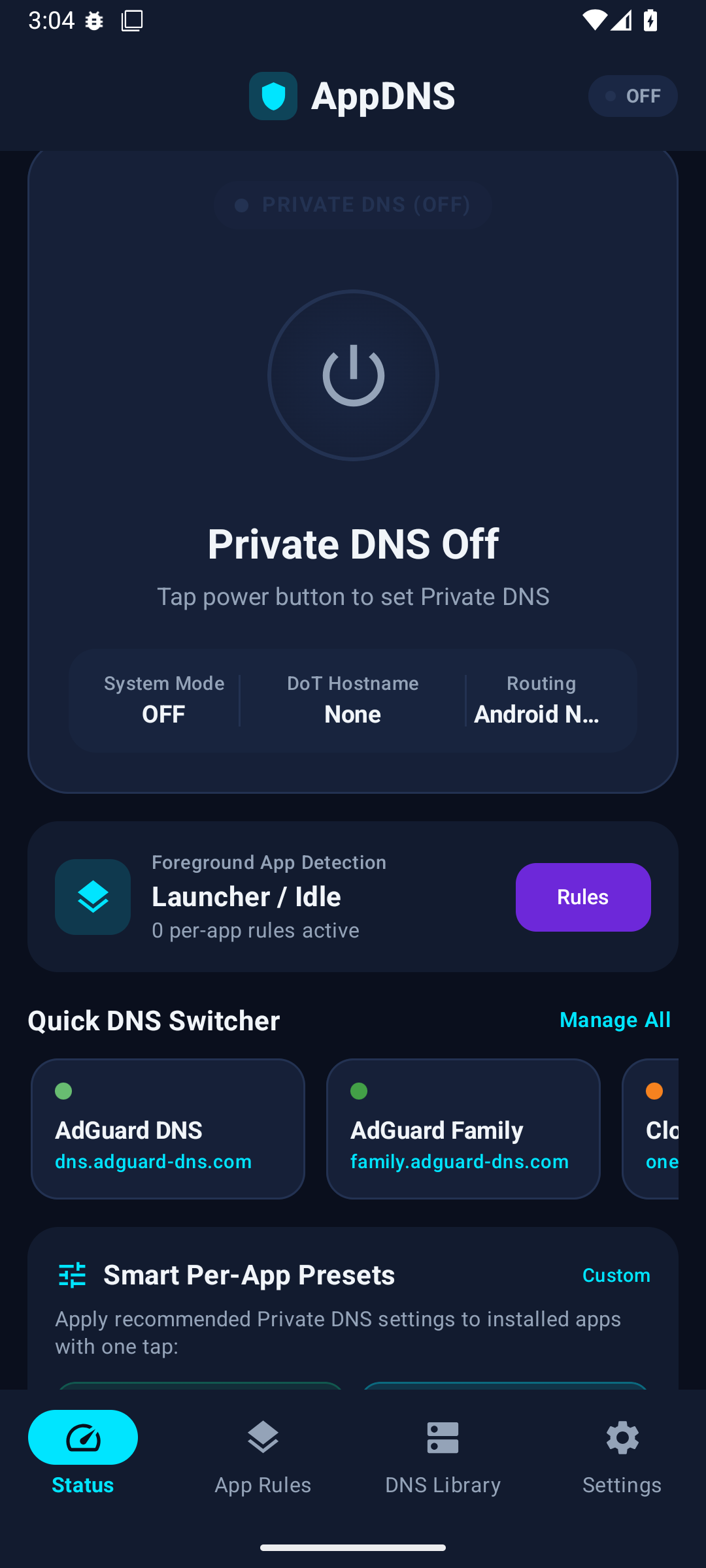 Home |
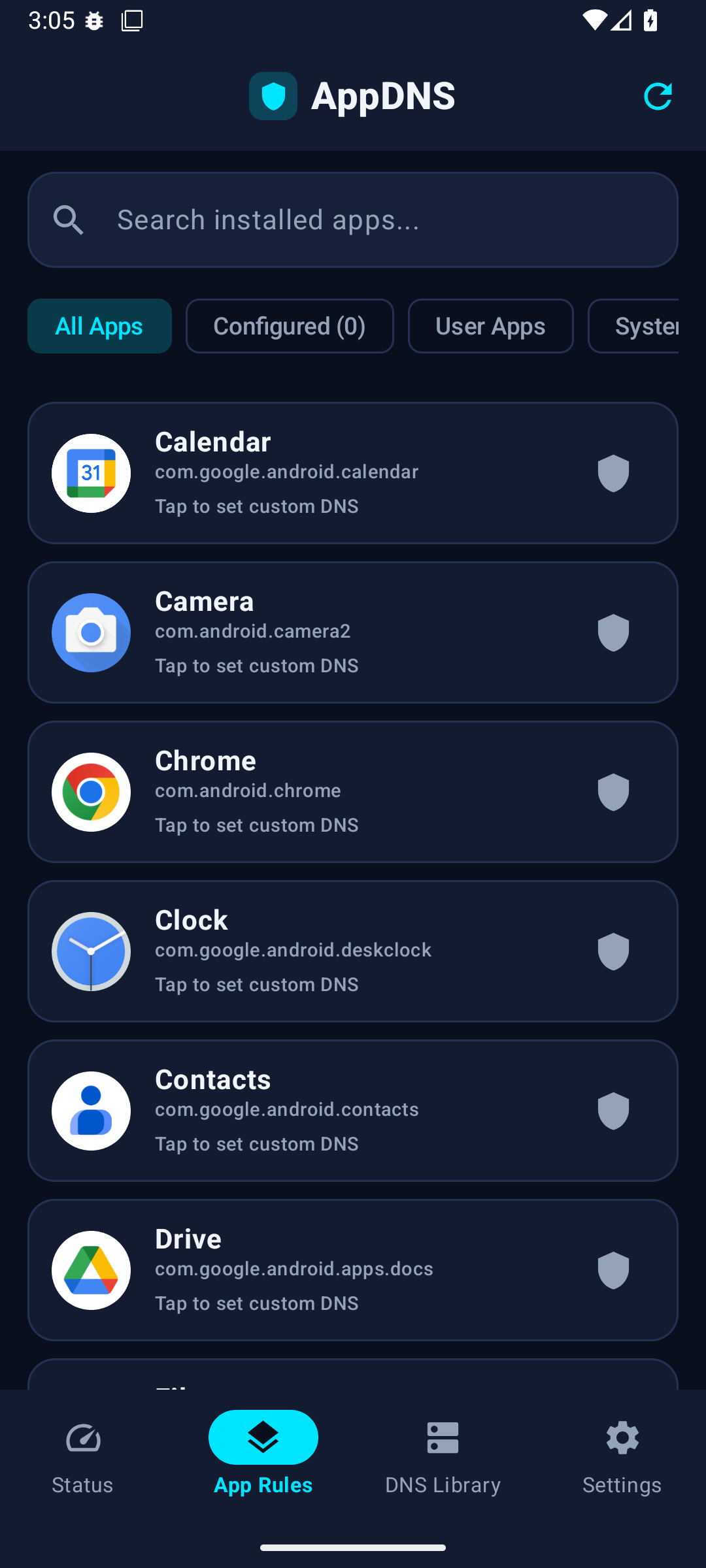 App Rules |
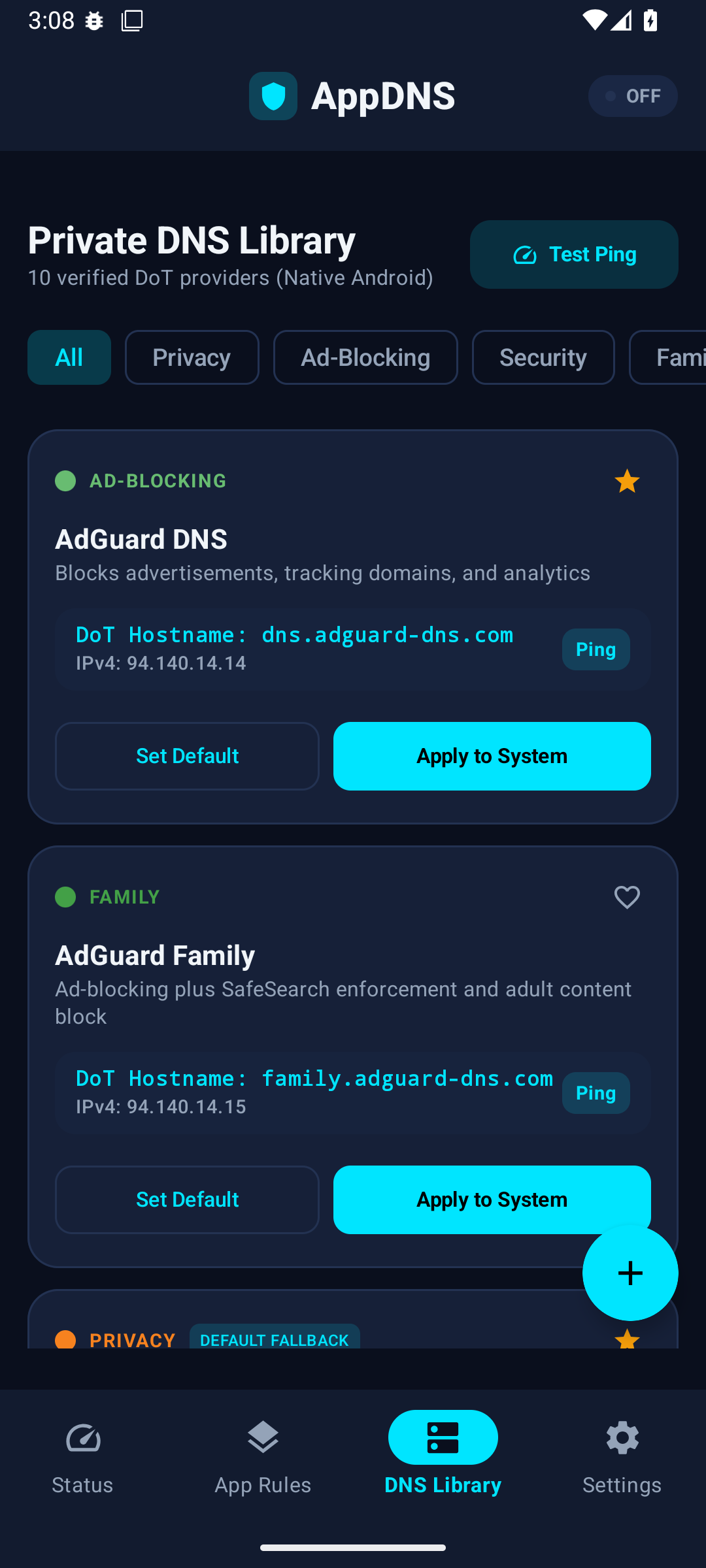 DNS Library |
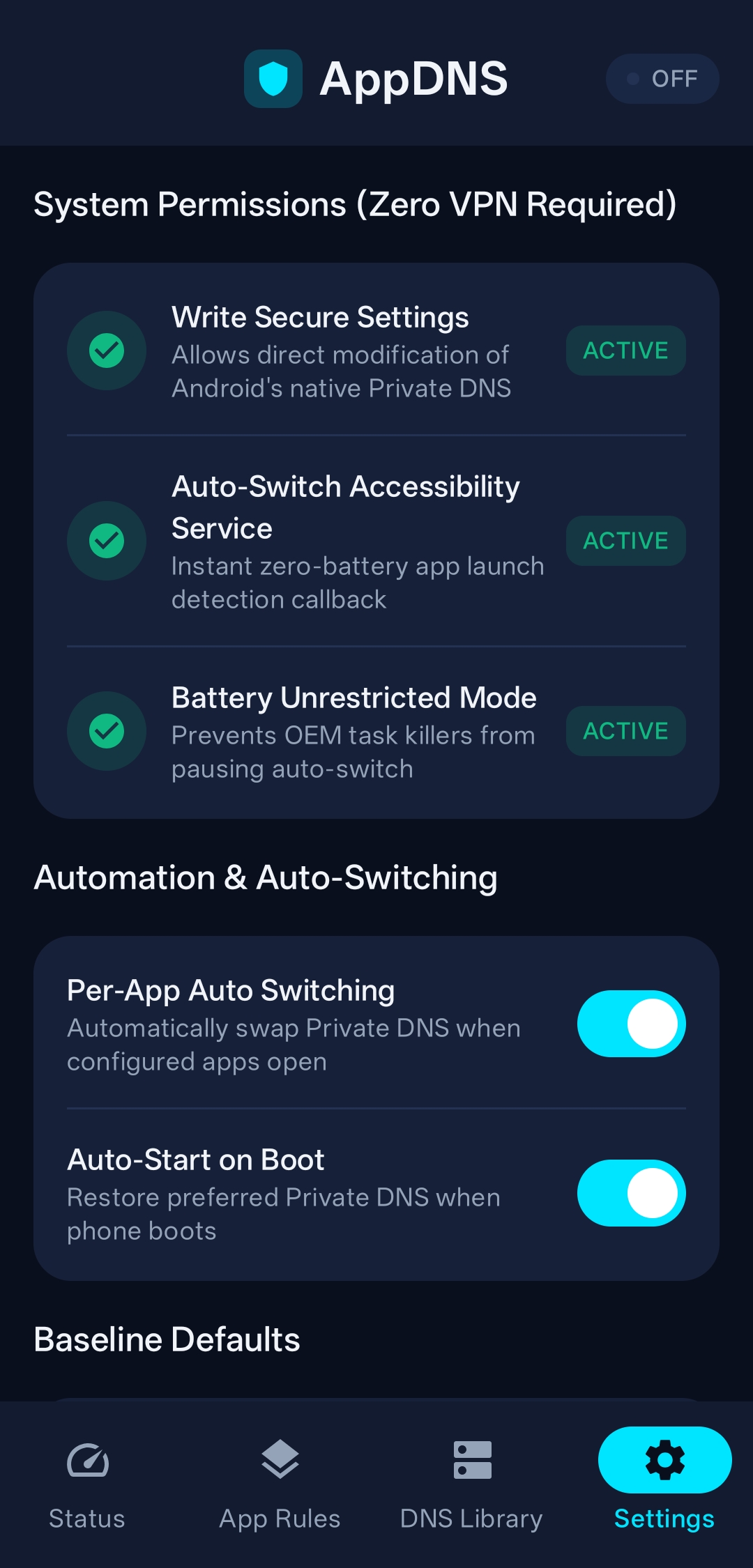 Settings |
Android private dns switcher, modify private dns settings per app, auto switch private dns android, no vpn dns switcher, adguard dns per app, cloudflare family dns switcher, nextdns android switcher, write secure settings private dns, dns-over-tls per app routing, quick settings private dns tile, event-driven private dns automation, appdns, appdns apk, appdns github, appdns apk github, appdns shishir-ip, private dns tiles, private dns quick settings tiles
Traditional Android DNS switcher apps require running a local VpnService. This introduces several practical drawbacks:
- Blocks your VPN slot: Android allows only one active VPN interface at a time. A VPN-based DNS tool prevents you from running WireGuard, Tailscale, OpenVPN, or corporate VPNs.
- CPU and memory overhead: Continuous packet interception and loopback tunneling in user space.
- VPN key icon & warnings: Persistent VPN status indicators in the notification bar.
AppDNS takes a different approach: It writes directly to Android's native system configuration:
Settings.Global.PRIVATE_DNS_MODE("hostname","off", or"opportunistic")Settings.Global.PRIVATE_DNS_SPECIFIER("dns.adguard-dns.com","one.one.one.one","family.cloudflare-dns.com", etc.)
Android's own kernel and network stack manage the encrypted DNS-over-TLS (DoT) connection natively at hardware speeds with no VPN slot conflicts and low CPU overhead.
AppDNS uses an event-driven architecture rather than active polling:
- Zero Polling: Instead of running a continuous background loop to check running processes, AppDNS relies on Android's
AccessibilityServicewindow state callback (AccessibilityEvent.TYPE_WINDOW_STATE_CHANGED). The system notifies AppDNS only when the active window changes. - 350 ms Debounce: When a new foreground package is detected, a 350 ms timer (
DEBOUNCE_DELAY_MS) ensures the window remains stable before applying rules or firing exit actions. Transient UI flutters (such as rapid task switching or momentary splashes) do not trigger unnecessary DNS changes. - Neutral System Windows: System UI elements (
com.android.systemui), input method editors/keyboards (inputmethod), and runtime permission dialogs (permissioncontroller,packageinstaller) are recognized as neutral. When these overlays appear, AppDNS maintains the current DNS state and preserves the underlying foreground app context.
AppDNS is designed to be transparent about what it touches on your device. Below is a detailed breakdown of all requested permissions and data handling.
- Why it is needed: Android does not provide a standard callback when apps open and close. The accessibility service listens exclusively for
TYPE_WINDOW_STATE_CHANGEDevents to determine which application is currently in the foreground and apply your configured DNS profile. - What it reads: The service reads only the package name (
event.packageName) of the focused window. - What it cannot read: In
accessibility_service_config.xml,canRetrieveWindowContentis explicitly set tofalse. The service cannot read screen content, text fields, passwords, keystrokes, or view trees.
- Why it is needed: Android protects
Settings.Globalto prevent unauthorized apps from changing system settings. AppDNS requiresWRITE_SECURE_SETTINGSto changeprivate_dns_modeandprivate_dns_specifier. - How it is granted: Granted once during setup via ADB, Shizuku, or Root (see Setup).
| Permission | Protection Level | Why AppDNS Uses It |
|---|---|---|
android.permission.INTERNET |
Normal | Used strictly for the optional socket latency test tool (DnsPingTester) to ping user-selected DNS hostnames. |
android.permission.ACCESS_NETWORK_STATE |
Normal | Checks network connectivity status before running latency ping checks. |
android.permission.RECEIVE_BOOT_COMPLETED |
Normal | Allows AppDnsBootReceiver to restore your default Private DNS profile after a device reboot. |
android.permission.POST_NOTIFICATIONS |
Runtime (Android 13+) | Allows displaying Quick Settings status updates or service alerts if enabled. |
android.permission.WRITE_SECURE_SETTINGS |
Signature / Privileged | Core permission to write native Private DNS hostname and mode settings. |
android.permission.WRITE_SETTINGS |
Signature / System | Included as a legacy compatibility fallback for older Android versions. |
android.permission.PACKAGE_USAGE_STATS |
Special App Access | Declared as an optional alternative fallback for foreground app detection. |
android.permission.QUERY_ALL_PACKAGES |
Normal (Android 11+) | Allows the App Rules screen to list installed apps so you can pick which apps to configure. |
BIND_ACCESSIBILITY_SERVICE |
Signature | Required for the accessibility service to receive window state change events. |
All application data is saved strictly on-device in a local Room SQLite database (AppDnsDatabase):
- DNS Profiles (
dns_profiles): Saved DNS hostnames, descriptions, and test latency numbers. - App Rules (
app_rules): Mappings between package names, assigned DNS profile IDs, and exit actions. - Event History (
app_logs): A rolling log (last 40 entries) recording when a rule switched DNS (timestamp, app name, package name, target DNS profile). No URLs, visited domains, or browsing telemetry are ever collected or stored.
- AppDNS contains no analytics SDKs, no tracking libraries, and no telemetry services.
- The only network calls in the codebase are in
DnsPingTester.kt, which opens a direct TCP socket handshake (Socket.connect) to measure latency to the specific DNS server address you chose to test.
You can inspect the source code directly to verify all behavior:
- Accessibility configuration:
accessibility_service_config.xml - Accessibility event listener:
AppDnsAccessibilityService.kt - Focus management & debounce logic:
AppDnsController.kt - System Private DNS read/write logic:
PrivateDnsManager.kt - Local event log storage:
AppLogDao.kt
- Turn off Accessibility: Open Android Settings > Accessibility > AppDNS, and switch the toggle to Off.
- Revoke
WRITE_SECURE_SETTINGS: Connect your phone to a computer and run:adb shell pm revoke com.aistudio.appdns.pvtkqr android.permission.WRITE_SECURE_SETTINGS
- Uninstalling: Uninstalling AppDNS immediately purges all local databases and settings.
- System-Wide Setting (Not Per-App Tunnel Isolation):
- Android's native Private DNS is a global system setting. When AppDNS switches the hostname for the active foreground app, the entire device uses that DNS provider while that app is in front.
- Background sync and notifications from other apps will resolve through whichever DNS provider is active at that moment. Unlike a full VPN split-tunnel, this does not isolate background traffic per socket.
- Android 9+ and DoT Only:
- Android's native Private DNS feature requires Android 9 (API 28) or higher and supports DNS-over-TLS (DoT) hostnames. It does not support raw DNS-over-HTTPS (DoH) URLs natively.
- Device / OEM Behavior:
- Certain aggressive OEM skins (e.g. heavily customized battery savers) may delay accessibility callbacks or background execution. If you experience delays on a specific device model, please open a GitHub issue with your device model and Android version.
- Short Delay When Opening an App:
- When you open an app that has a DNS rule, the new DNS is applied after a short delay (a 350 ms debounce plus the time Android takes to apply the setting). During that moment, the app's first DNS lookups may still use the previous DNS. If the previous DNS wasn't filtering, a lookup to an ad or malware domain could slip through. AppDNS is not a security boundary. For strict blocking, set your filtering DNS as the default profile and use per-app rules only for apps that need a different DNS.
- App-Specific Hostnames: Assign designated DoT providers to individual apps (e.g.
dns.adguard-dns.comfor browsers,dns.quad9.netfor banking,one.one.one.onefor general use). - Event-Driven Detection: Uses Android window state change callbacks (
TYPE_WINDOW_STATE_CHANGED) to trigger setting updates with low battery impact. - Configurable Exit Actions:
- Turn off Private DNS completely (
private_dns_mode = off) - Revert to system default profile (
private_dns_mode = hostname) - Revert to automatic opportunistic mode (
private_dns_mode = opportunistic) - Keep active
- Turn off Private DNS completely (
- Private DNS Toggle Tile (
AppDnsToggleTileService): One-tap toggle directly in your quick settings pull-down. Subtitle dynamically displays the active hostname or status. - DNS Profile Cycler Tile (
AppDnsSelectorTileService): Cycle through your saved DoT providers without opening the app.
Includes verified hostnames out of the box:
- AdGuard DNS:
dns.adguard-dns.com(Ad and tracker blocking) - AdGuard Family:
family.adguard-dns.com(Ad-blocking + adult filter) - Cloudflare 1.1.1.1:
one.one.one.one(Fast privacy resolver) - Cloudflare Security:
security.cloudflare-dns.com(Malware blocking) - Cloudflare Family:
family.cloudflare-dns.com(Malware + adult filter) - Quad9 Security:
dns.quad9.net(Threat intelligence & zero logs) - NextDNS:
dns.nextdns.io(Custom cloud filtering; enter your custom ID:<id>.dns.nextdns.io) - Mullvad AdBlock:
adblock.doh.mullvad.net(Strict no-log privacy) - Google Public DNS:
dns.google(Geo-distributed resolver) - Control D:
p0.freedns.controld.com(Uncensored DoT) - Custom DoT Hostnames: Add unlimited custom DoT server hostnames.
- Test live connection times directly to resolvers in milliseconds over TCP.
- No analytics, no tracking, no remote logging.
- DNS-over-TLS encryption is handled directly by Android OS.
Because modifying Android's system Settings.Global is a protected feature, AppDNS needs the WRITE_SECURE_SETTINGS permission once during setup:
Connect your phone with USB debugging enabled and run:
adb shell pm grant com.aistudio.appdns.pvtkqr android.permission.WRITE_SECURE_SETTINGS- Start Shizuku on your device using Wireless Debugging.
- Use terminal/command execution to grant
WRITE_SECURE_SETTINGSfor AppDNS.
If your phone is rooted with Magisk or KernelSU, tap the 1-Tap Root Grant button on the setup banner.
- Open AppDNS Settings.
- Tap Enable next to Auto-Switch Accessibility Service.
- Toggle AppDNS to ON.
AppDNS Architecture (Direct Android Settings Management)
├── Core System Engine
│   ├── PrivateDnsManager          # Reads/writes Settings.Global.private_dns_mode & private_dns_specifier
│   ├── AppDnsController           # Coordinates app focus events with debounce & neutral window filters
│   ├── AppDnsAccessibilityService # Window state change listener (canRetrieveWindowContent=false)
│   ├── AppDnsToggleTileService    # Quick Settings toggle for system Private DNS
│   ├── AppDnsSelectorTileService  # Quick Settings DoT profile cycler
│   └── AppDnsBootReceiver         # Restores preferred DNS on device reboot
├── Data Layer (Room Local SQLite)
│   ├── AppDnsDatabase             # Local Room DB for profiles, rules, and event triggers
│   ├── DnsProfileDao              # Storage for DoT hostnames, categories, and latency
│   ├── AppRuleDao                 # Per-package rule configuration & exit actions
│   └── AppLogDao                  # Local trigger event history (no browsing telemetry)
└── UI Layer (Jetpack Compose M3)
    ├── DashboardScreen            # Live system Private DNS status & setup wizard
    ├── AppRulesScreen             # App search, per-app hostname assignment & sheet
    ├── DnsProfilesScreen          # Pre-loaded DoT providers & custom hostname editor
    └── SettingsScreen             # Permission check, fallback selector, tile guides
No. AppDNS does not create a VPN connection or run a local proxy. It modifies Android's built-in Private DNS setting directly. Your VPN slot remains completely free for WireGuard, Tailscale, or work VPNs.
AppDNS is event-driven and does not run continuous polling loops in the background. Android OS natively handles the DoT connection. When switching apps, AppDNS applies the setting and goes idle.
Yes. Go to the DNS Library tab, tap +, and enter your hostname (for example: xyz123.dns.nextdns.io).
Licensed under the Apache License, Version 2.0.