
 - Browser extensions
 - Android IDP app
 - IIS IDP App
PowerOIDC is a local PowerShell/XAML tool for testing OpenID Connect (OIDC) flows from a Windows client. The tool was created for environments where external online OIDC testing tools are not always available or appropriate to use, for example due to strict network rules, firewall restrictions, customer security policies, or isolated environments. Instead of relying on web-based tools, PowerOIDC runs locally and helps validate the most common parts of an OIDC integration directly from the client machine.
- News
- Why this tool exists
- Security notes
- Features
- How it works
- Screenshots
- Requirements
- Configuration
- Usage
- Manual authorization code flow
- Test steps
- Output
- Browser extensions
- Auth0 / Google / OAuth.tools quick-fill buttons on the Configuration tab (desktop GUI and browser extensions) that load the openidconnect.net and oauth.tools (Curity demo) playground defaults with one click.
- Browser extensions for Chrome, Edge and Firefox running the same 12-step flow. See Browser extensions.
- The XAML and each function moved to their own files.
- The tool was split into UI / Functions / Config / Logs (modular layout).
In many customer environments, using public online OIDC debugging tools is not possible. The client network may block external services, or security policies may prevent sending configuration details, tokens, or identity-related data to third-party websites. PowerOIDC was built to make troubleshooting easier in those situations. It allows the user to run the OIDC test locally, keep the test data inside the environment, and export structured JSON output for further analysis.
The tool may display sensitive data such as:
- Client secrets
- Authorization codes
- Access tokens
- ID tokens
- Refresh tokens
- User claims
PowerOIDC can help test and inspect:
- OIDC discovery metadata
- JWKS endpoint availability
- Authorization URL generation
- Authorization Code Flow
- Manual authorization code handling
- Token endpoint exchange
- ID token decoding
- ID token header and claims
- UserInfo endpoint
- Refresh token flow
- Refreshed ID token claims
- Refreshed UserInfo response
- Optional old refresh token reuse check
- JSON export of test results
- Quick-fill buttons (Auth0 / Google / OAuth.tools) for the openidconnect.net and oauth.tools playgrounds
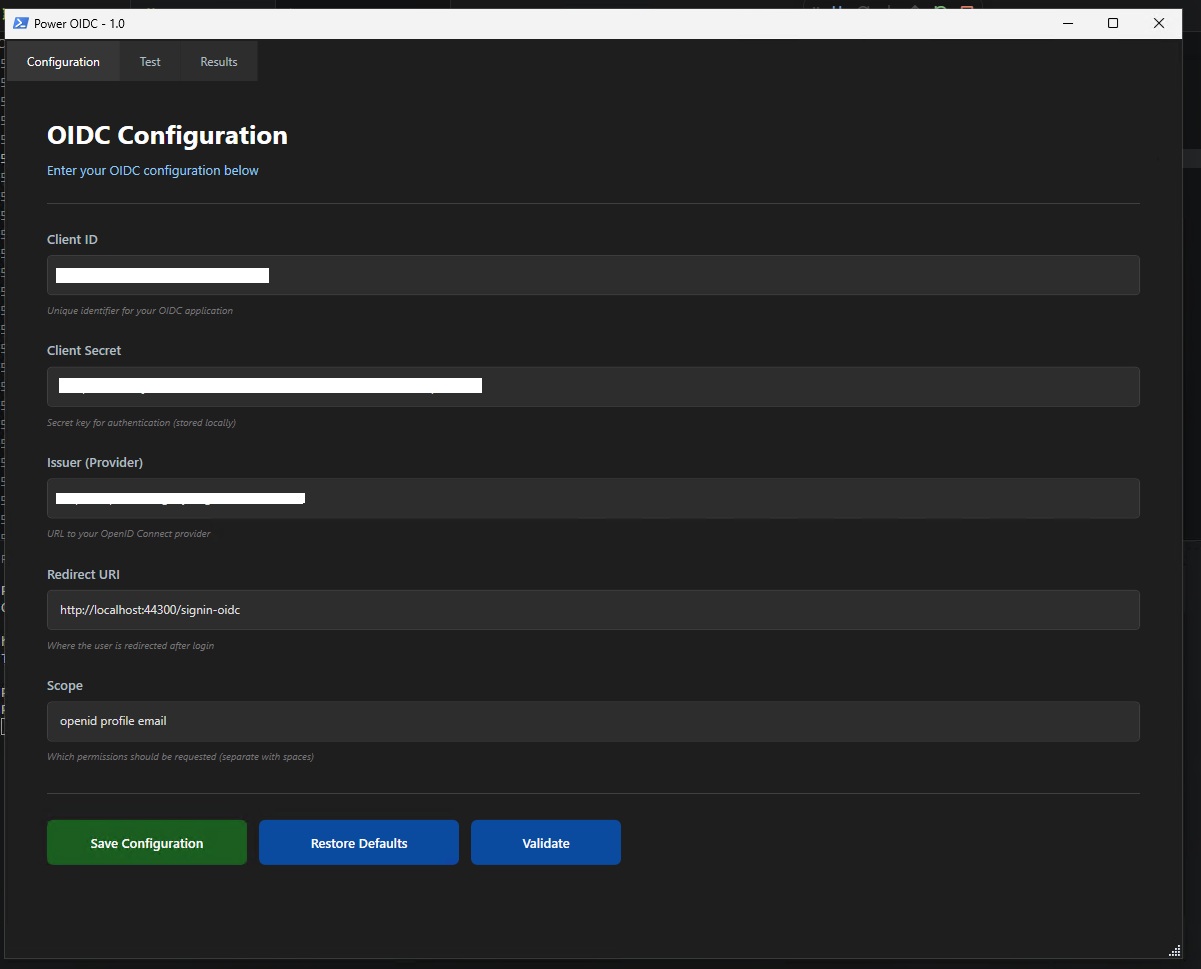
PowerOIDC uses a graphical interface built with PowerShell and WPF. The user provides the required OIDC configuration:
- Client ID
- Client Secret
- Issuer URL
- Redirect URI
- Scope
For quick testing you can also click the Auth0 or Google button on the Configuration tab (or OAuth.tools for the Curity demo) to load playground defaults instead of typing the values by hand.
The tool then performs a step-by-step validation of the OIDC flow. For the authorization step, PowerOIDC supports two redirect modes, selectable on the Configuration tab:
- Manual paste (default) — the tool opens the authorization URL in the browser. After login, the user copies the redirected URL containing the authorization code and pastes it back into the application. This needs no local HTTP listener, which can be blocked or restricted in some environments, and works with any registered redirect URI.
- Automatic capture — PowerOIDC starts a local
HttpListeneron the redirect URI, opens the authorization URL, and captures the code itself when the provider redirects back. This mirrors the browser extension's automatic mode and requires anhttp://localhost:<port>/...redirect URI.
Recommended:
- Windows
- PowerShell 7.x Minimum:
- Windows PowerShell 5.1
The tool expects configuration files under the Settings folder.
Example oidcConfig.json:
{
  "configclientid": "your-client-id",
  "configclientsecret": "your-client-secret",
  "configissuer": "https://your-issuer.example.com",
  "configredirecturi": "http://localhost:44300/signin-oidc",
  "configscopetext1": "openid profile"
}- Clone or download the repository.
- Update the OIDC configuration in the GUI or in
Settings/oidcConfig.json. (Or click Auth0 / Google on the Configuration tab to load test defaults.) - Run the script:
./powerOIDCv3.1.ps1- Open the Configuration tab and verify the values.
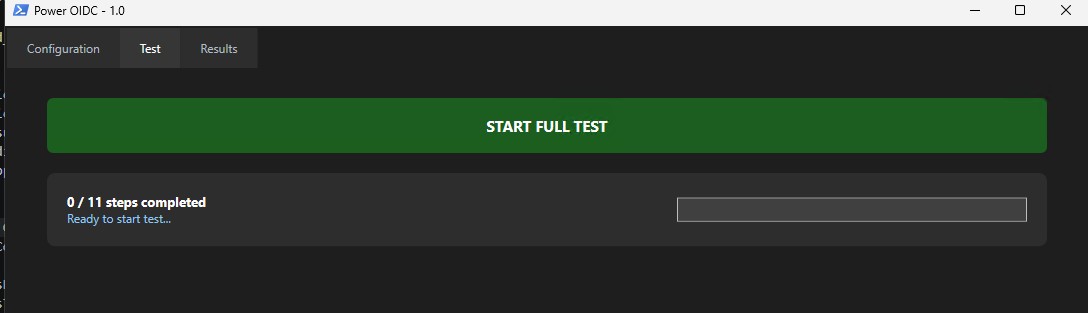
- Go to the Test tab.
- Click Start Full Test.
- When the browser opens, sign in to the OIDC provider.
- After login, copy the full redirected URL from the browser address bar.
- Paste the URL back into the PowerOIDC dialog.
- Review the test results in the GUI.
- Export the result as JSON if needed.
During the authorization step, the browser may redirect to a local URL such as:
http://localhost:44300/signin-oidc?code=AUTHORIZATION_CODE&state=STATE_VALUE
If no local web server is listening, the browser may show an error page. That is expected. The important part is the URL in the browser address bar. Copy the full URL and paste it into PowerOIDC. PowerOIDC will extract:
codestateerrorerror_descriptionIf the full redirect URL is provided, the tool can also validate that the returnedstatematches the generated state value.
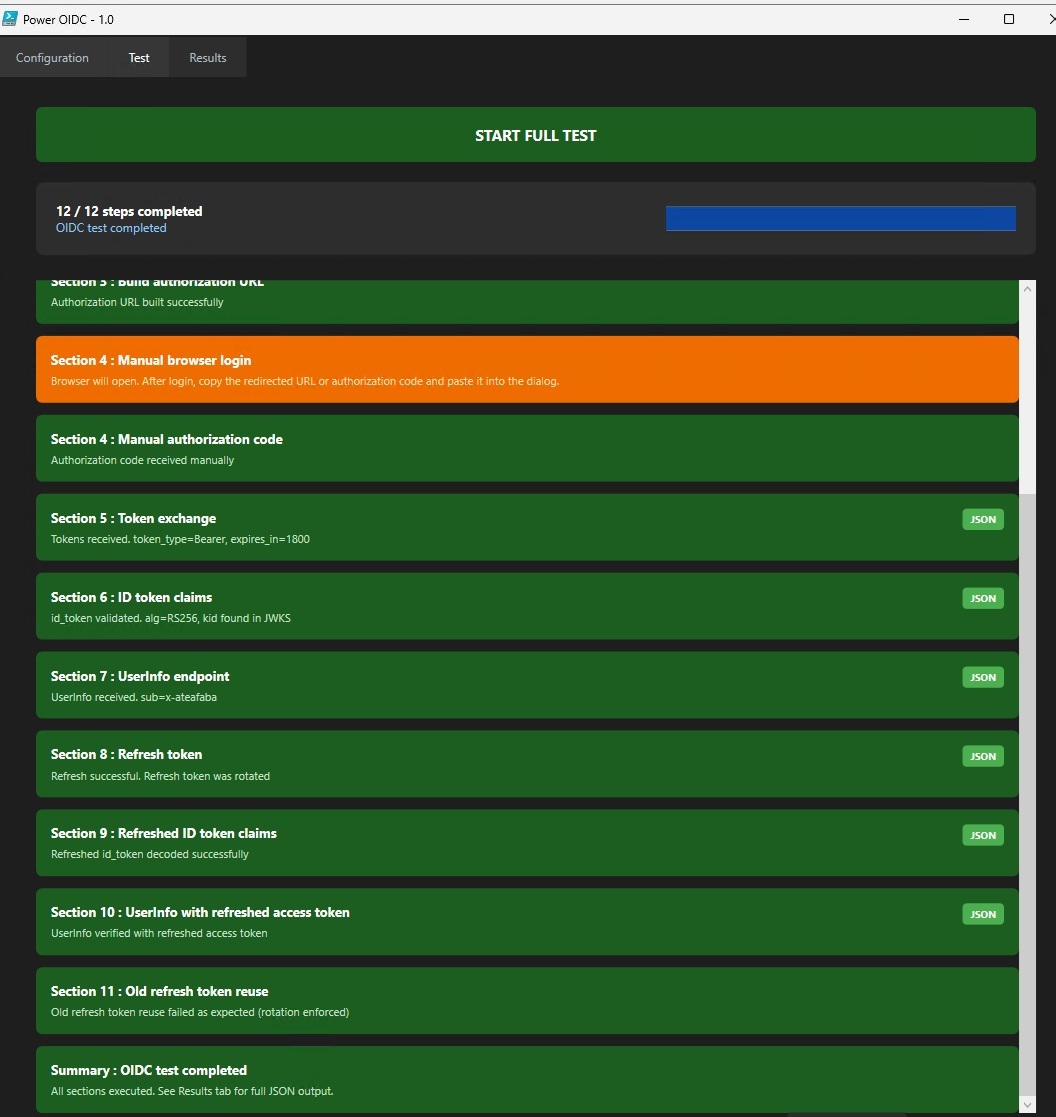
The test flow includes the following sections:
1. Configuration validation
2. Discovery endpoint test
3. JWKS endpoint test
4. Authorization URL generation
5. Manual browser login and authorization code capture
6. Token exchange
7. ID token decoding and claim validation
8. UserInfo endpoint test
9. Refresh token test
10. Refreshed ID token decoding
11. UserInfo test with refreshed access token
12. Old refresh token reuse test
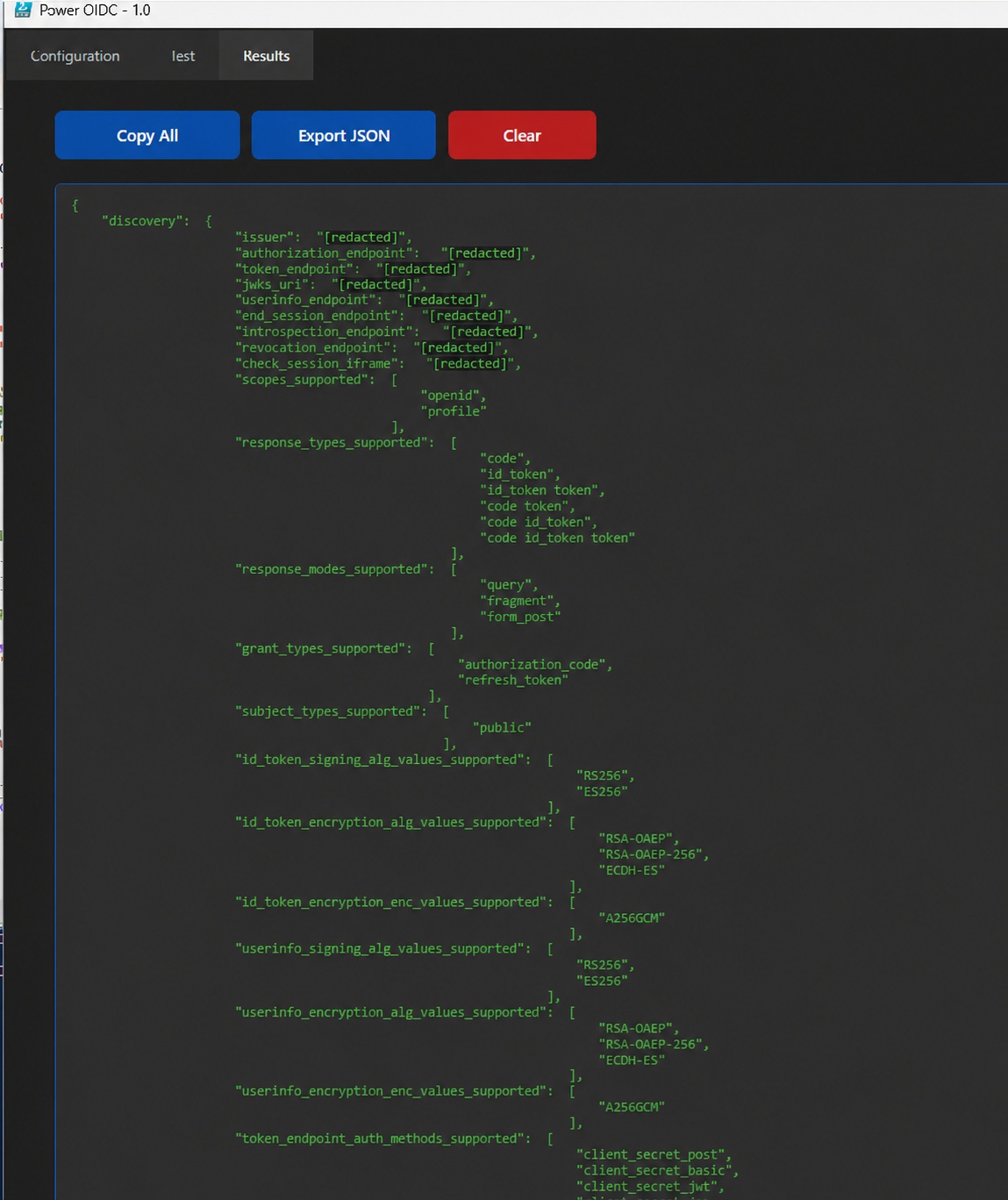
PowerOIDC stores the test results in memory during the run and displays the output in the Results tab. The output can be copied or exported as JSON. The JSON output may include:
- Discovery response
- JWKS response
- Token response
- ID token header
- ID token claims
- UserInfo claims
- Refresh token response
- Refreshed ID token claims
- Refreshed UserInfo claims
PowerOIDC is also available as browser extensions for Chrome, Edge and Firefox that run the same 12-step verification flow inside the browser, with manual paste and automatic redirect capture, plus the same Auth0 / Google quick-fill buttons.
They live under the Browser extensions folder — see the README there for full details.
Quick link:
Links to the web stores coming soon.